General Tools: Insert
The Insert toolbar contains elements that can be inserted into a document.
These elements are divided into the following categories.

 Pages
Pages
|
Command |
Large Icon |
Small Icon |
Description |
|---|---|---|---|
|
Page Break |
|
|
Inserts a page break at the carriage position.
|


Tables
|
Command |
Large Icon |
Small Icon |
Description |
|---|---|---|---|
|
Table |
|
|
Inserts a table with a specified number of rows and columns at the carriage position.
|


Illustrations
|
Command |
Large Icon |
Small Icon |
Description |
|---|---|---|---|
|
Inline Picture |
|
|
Inserts an inline picture at the carriage position. In a document, the inline picture behaves like an ordinary text symbol. |
|
Picture |
|
|
Inserts a picture into a document. You can adjust the picture's outline, wrap text, position, and order using commands from the Picture Tools: Format tab. |


Toolbox
|
Command |
Large Icon |
Small Icon |
Description |
|---|---|---|---|
|
Bar Code |
|
|
Inserts a bar code at the carriage position.
|
|
Check Box |
|
|
Inserts a check box at the carriage position (e.g., to display Boolean values from a data source).
|
|
Chart |
|
|
Inserts a chart at the carriage position. |
|
Sparkline |
|
|
Inserts a sparkline at the carriage position. |
|
Row Index |
|
|
Inserts a row index at the carriage position. |


Links
|
Command |
Large Icon |
Small Icon |
Description |
|---|---|---|---|
|
Bookmark |
|
|
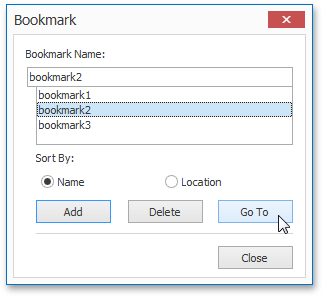
Invokes the Bookmark dialog to add a new bookmark at the carriage position, or navigate to an existing bookmark. |
|
Hyperlink |
|
|
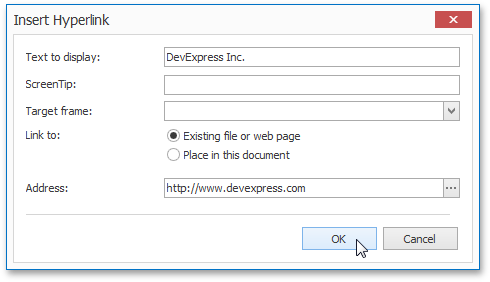
Invokes the Insert Hyperlink dialog to create a hyperlink and specify its text, screen tip and destination.
|




Header & Footer
|
Command |
Large Icon |
Small Icon |
Description |
|---|---|---|---|
|
Header |
|
|
Allows editing the page header. In a published document, the content added to the header will appear at the top of each page.
To quickly switch to this mode, double-click the page header area.
To make the first page header display unique content, or make odd- and even-numbered pages carry different headers, use the options available on the Header and Footer Tools: Design tab. |
|
Footer |
|
|
Activates the page footer edit mode. In a published document, the content added to the footer will appear at the bottom of each page.
To quickly switch to this mode, double-click the page footer area.
To make the first page footer display unique content, or make odd- and even-numbered pages carry different footers, use the options available on the Header and Footer Tools: Design tab. |
|
Page Number |
|
|
Inserts the number of the current page at the carriage position.
|
|
Page Count |
|
|
Inserts the total page count at the carriage position.
|


Text
|
Command |
Large Icon |
Small Icon |
Description |
|---|---|---|---|
|
Text Box |
|
|
Inserts a text box into a document.
|


Symbols
|
Command |
Large Icon |
Small Icon |
Description |
|---|---|---|---|
|
Symbol |
|
|
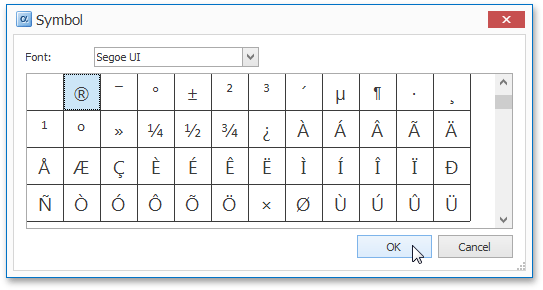
Invokes the Symbol dialog, to insert characters that are not available on the keyboard. |